Errors:
- EntityDataSource error ...
- Error in Visual Studio 2013 and EntityDataSource
- EntityDataSource have error "the provider did not return a providermanifest instance"
- How to Fix "The provider did not return a ProviderManifest instance ...
Full Error:
The metadata specified in the connection string could not be loaded. Consider rebuilding the web project to build
assemblies that may contain metadata. The following error(s) occurred:
The provider did not return a ProviderManifest instance.
Solution:
Open the EDMX file and change ProviderManifestToken="2012" to ProviderManifestToken="2008"
Other Solutions (not useful for me):
1- I know this is a ridiculous solution but i think that the star (*) is not working in connection string field of Web.config :-( you can change it with project name as a project namespace reference
Before: <add name="TestEntities" connectionString="metadata=res://*/Model1.csdl|res://*/Model1.ssdl blah blah
After: <add name="TestEntities" connectionString="metadata=res://PROJECTNAME/Model1.csdl|res://PROJECTNAME/Model1.ssdl blah blah
2- Go to Run > %temp% and empty the temp folder
3- Set integrated security=False in connection string field of Web.config
Amastaneh blog is a discussion site on software development, programming, algorithms, software architectures,software run-time errors and solutions from software engineers who love building great softwares.
February 08, 2014
February 04, 2014
SugarCRM Installation Problem
Errors:
- Cant get past License Acceptance Page ...
- Next is not working in License Acceptance Page
- yahoo is not defined - license acceptance failed
- Can't get past the License acceptance screen
- Problem with installation on step License Acceptance
- Can't get passed License Acceptance
- Install stuck at License Acceptance
- Error occurs when clicking "next" on the license-agreement screen
Solution:
- Go to .../include/javascript/yui/build/container
- Replace container.js to container-min.js (remove min file and copy original file with a new name)
The problem solve :-)
My Road-map:
Yes, it's simple like as a charm. if you want to know about how to trick to find out this solution follow these steps
- Open page in Chrome and use of Inspect Element > Source
- Find out where's the problem
- Find out what's file name
- After that i think that it's could be solve after change it with original source (not minified) or replace with a new one.
Yes, after change the min file with uncompressed file the problem goes ;-)
- Cant get past License Acceptance Page ...
- Next is not working in License Acceptance Page
- yahoo is not defined - license acceptance failed
- Can't get past the License acceptance screen
- Problem with installation on step License Acceptance
- Can't get passed License Acceptance
- Install stuck at License Acceptance
- Error occurs when clicking "next" on the license-agreement screen
Solution:
- Go to .../include/javascript/yui/build/container
- Replace container.js to container-min.js (remove min file and copy original file with a new name)
The problem solve :-)
My Road-map:
Yes, it's simple like as a charm. if you want to know about how to trick to find out this solution follow these steps
- Open page in Chrome and use of Inspect Element > Source
- Find out where's the problem
- Find out what's file name
- After that i think that it's could be solve after change it with original source (not minified) or replace with a new one.
Yes, after change the min file with uncompressed file the problem goes ;-)
February 01, 2014
Installer UI Mode Error
Error:
Installer UI Mode Error
Installer User Interface Mode Not Supported
The installer cannot run in this UI mode. To specify the
interface mode. Use the -i command-line option, followed by the UI mode identifier.
The valid UI modes identifiers are GUI, Console, and Silent.
Solution:
Right Click on EXE file and go to Properties > Compatibility and change the compatibility mode to Windows 7 or Older
Recommendation:
1- Most of time you can find exe files in Temp Directory. For find Windows Temp Directory go to
-Temp Directory: C:\Users\[USER NAME]\AppData\Local\Temp
-Temp Directory: go to Run (WinKey + R) and type %temp% and press Enter
2- Checked the Run this program as an administrator in Compatibility window.
January 17, 2014
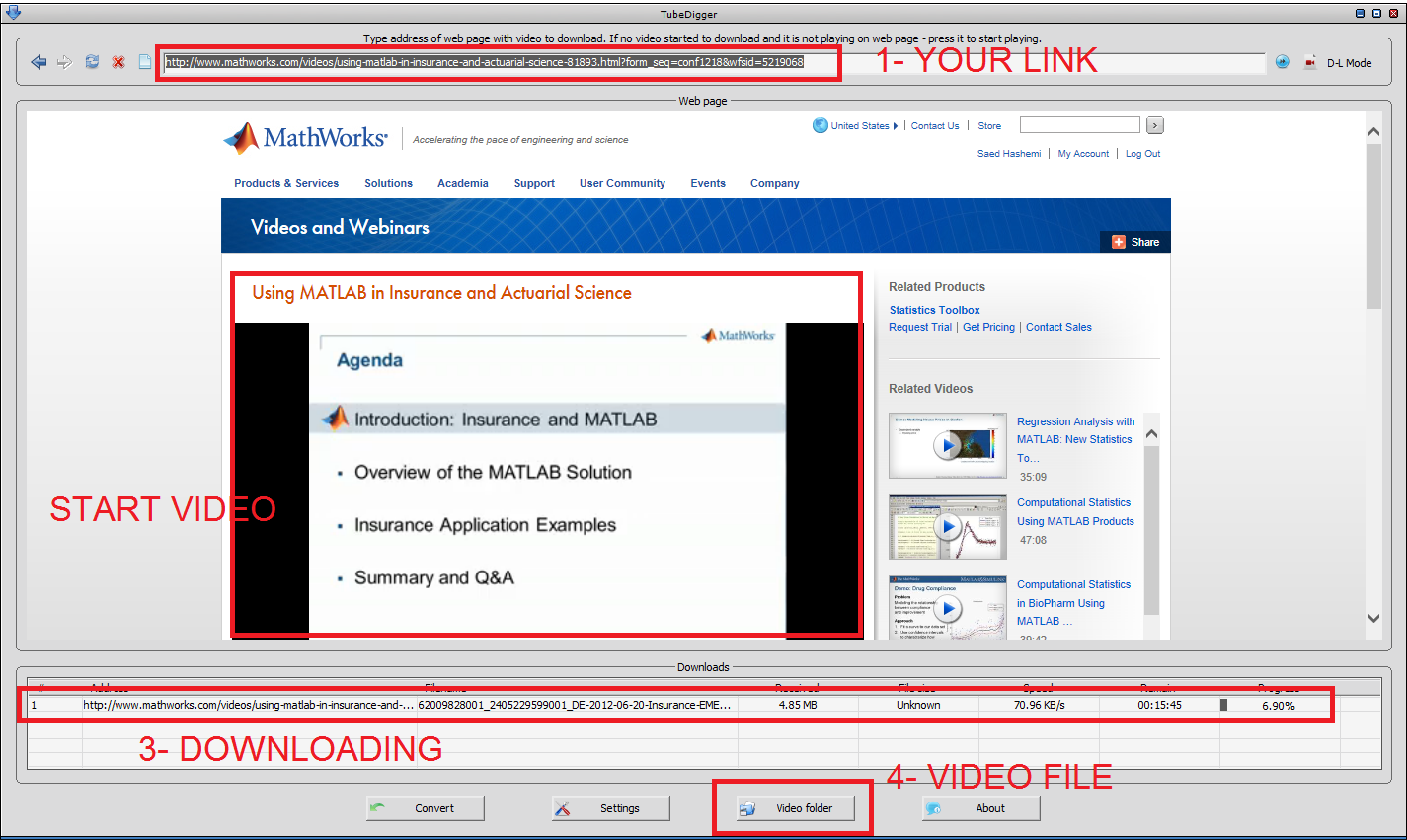
How to save MATLAB Webinar
Problem:
- How to save videos from MATLAB site
- How to save mathworks.com videos
- How to record video stream ...
- How to save MATLAB Webinar
- How to save videos which play with Brightcove
Solution:
- Download TubeDigger from www.tubedigger.com
- Browse your site in TubeDigger and enjoy ;-)
- How to save videos from MATLAB site
- How to save mathworks.com videos
- How to record video stream ...
- How to save MATLAB Webinar
- How to save videos which play with Brightcove
Solution:
- Download TubeDigger from www.tubedigger.com
- Browse your site in TubeDigger and enjoy ;-)
Subscribe to:
Posts (Atom)