Errors:
- Cant get past License Acceptance Page ...
- Next is not working in License Acceptance Page
- yahoo is not defined - license acceptance failed
- Can't get past the License acceptance screen
- Problem with installation on step License Acceptance
- Can't get passed License Acceptance
- Install stuck at License Acceptance
- Error occurs when clicking "next" on the license-agreement screen
Solution:
- Go to .../include/javascript/yui/build/container
- Replace container.js to container-min.js (remove min file and copy original file with a new name)
The problem solve :-)
My Road-map:
Yes, it's simple like as a charm. if you want to know about how to trick to find out this solution follow these steps
- Open page in Chrome and use of Inspect Element > Source
- Find out where's the problem
- Find out what's file name
- After that i think that it's could be solve after change it with original source (not minified) or replace with a new one.
Yes, after change the min file with uncompressed file the problem goes ;-)
Showing posts with label Chrome. Show all posts
Showing posts with label Chrome. Show all posts
February 04, 2014


December 26, 2013
Google Spreadhseet Notification Save button is greyed out
Problems
- "Set notification rules" save button is not available (grayed out)
- the save button is "grayed" out in Google spreadsheet notification
- save button is also grayed out
- save button in Google spreadsheet notification rules is not worked for me :-(
 Solution
1- Just start check the check boxes from end to first (it's worked)
2- Checked all checkboxes and unchecked one of three of top checkboxes
It works for me ;-)
- "Set notification rules" save button is not available (grayed out)
- the save button is "grayed" out in Google spreadsheet notification
- save button is also grayed out
- save button in Google spreadsheet notification rules is not worked for me :-(

1- Just start check the check boxes from end to first (it's worked)
2- Checked all checkboxes and unchecked one of three of top checkboxes
It works for me ;-)
February 14, 2011
Print Anywhere With Google Cloud Print
With Google Cloud Print you can connect your local printers to Google and go any where and connect to internet and send a print tasks to your printers from Google. It's not magic and it's so simple.
You can go to Google Chrome options and connect your home printer(s) to Google Chrome (with Google Cloud Print Service) and then if you go to any where, and send a print task from Google Applications on PC, Mobile. Google Application Website or anywhere, Google find your Google Chrome in home and send the print tasks to your home printers.
Setup
1- You can see my printers

2- Open your Google Chrome and Select Options

3- Find out Google Cloud Print in Under the Hood and select Sign-In button

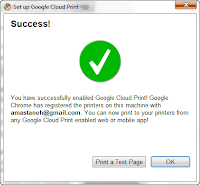
4- Add you Google account (or gmail account ...) and give a success message. (i love Print a Test Page and if you love it, test it and enjoy it :-D)


 PS: It's a first try of big G about Chrome OS and Internet Base OS and i think that Net-OS will be available and popular before 2020 if the world don't stop after 2012-21-DEC :-))
References
[1] Google Blog: http://googleappsupdates.blogspot.com/2011/01/print-from-your-phone-with-gmail-for.html
[2] Google Cloud Print Help Support: http://www.google.com/support/cloudprint/?hl=en
You can go to Google Chrome options and connect your home printer(s) to Google Chrome (with Google Cloud Print Service) and then if you go to any where, and send a print task from Google Applications on PC, Mobile. Google Application Website or anywhere, Google find your Google Chrome in home and send the print tasks to your home printers.
Setup
1- You can see my printers

2- Open your Google Chrome and Select Options

3- Find out Google Cloud Print in Under the Hood and select Sign-In button

4- Add you Google account (or gmail account ...) and give a success message. (i love Print a Test Page and if you love it, test it and enjoy it :-D)


5- By the way you can find Manage Print Settings... button in Google Cloud Print in Chrome Options... and go to Google Cloud Print Management and surprise.


References
[1] Google Blog: http://googleappsupdates.blogspot.com/2011/01/print-from-your-phone-with-gmail-for.html
[2] Google Cloud Print Help Support: http://www.google.com/support/cloudprint/?hl=en
Subscribe to:
Posts (Atom)